
Overview
One of the biggest issues with the regular Divi Contact Form module is that emails are not saved in the database. This is an essential need for any form plugin, but it is missing in Divi. Without this, you may totally miss important entries from clients and customers, and miss out on important details from their form submission.
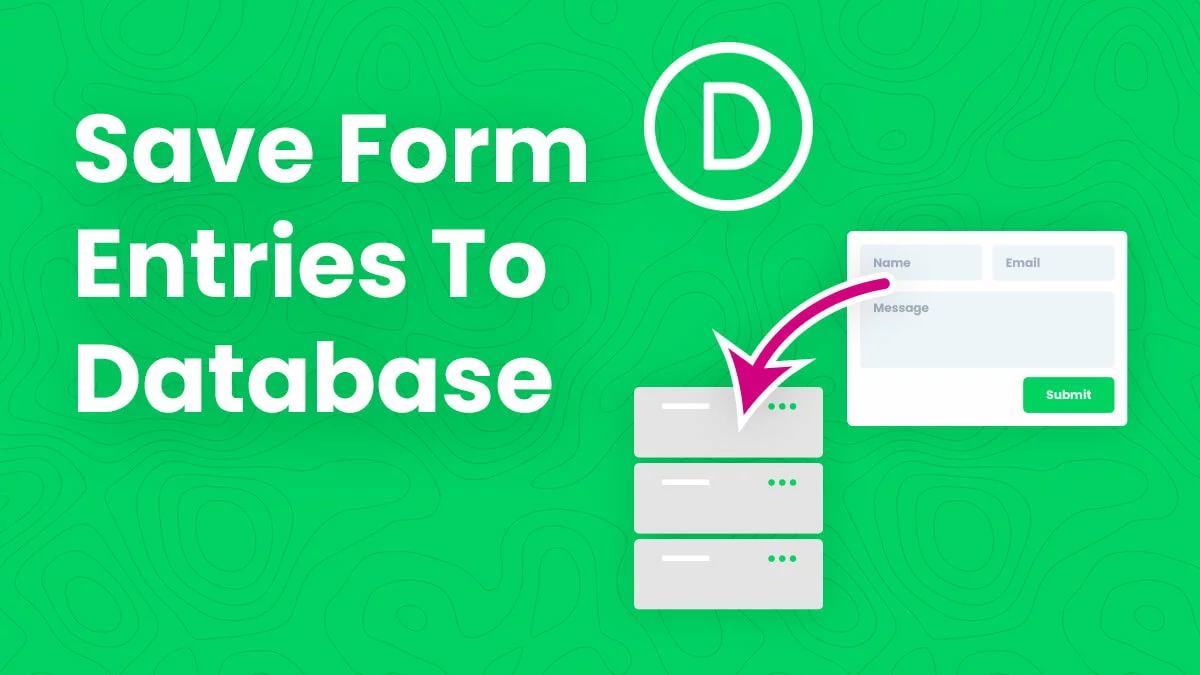
The Divi Contact Form Helper plugin by Pee-Aye Creative enables you to save the contact form submissions to the database of the website. Now you can have peace of mind and enjoy the benefits of viewing, sorting, exporting, replying to, backing up, converting to posts, and much more.
Please note, this feature is not included with Divi and is impossible without our plugin, so we hope you enjoy this exciting feature! This guide will show you how to enable and use the features and settings related to saving form entries to the database.
We recently created a blog post and video about this topic if you prefer to reference that instead for more general steps.
Required Settings
In order to save entries to the database, there are some very simple requirements to set up to enable the feature. These should already be in place by default, but it is important to review them to be sure the requirements are met.
IMPORTANT: Each of these three points are required for saving form entries to the database.
1. Have An Updated Version Of Divi
Due to some changes made by Elegant Themes, you must have at least version 4.13.1 of Divi installed to save entries to the database. This should be no issue, because we sure hope you do not make a habit of using outdated software! If you are using a version of Divi below 4.13.1, this feature will not work, so please upgrade Divi to a newer version.
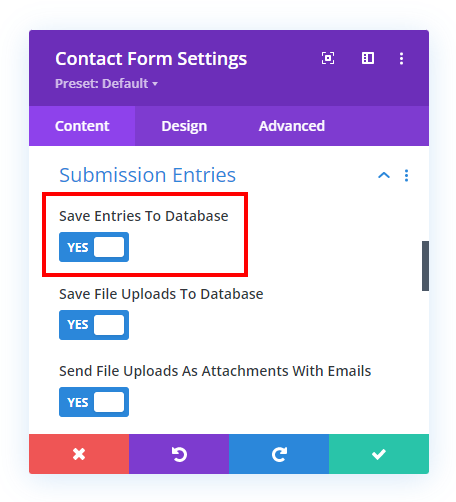
2. Confirm The Save Entries To Database Option Is Enabled
This setting should be enabled by default, but it’s good to check to be sure and to get familiar with where the settings are located. This setting is located in the Submission Entries toggle in the Divi Contact Form module. When enabled, the details from any contact form submission will be saved in your website database.
3. Add Contact Form Unique ID
In order for entries to be saved in the database, you MUST have a unique ID in each contact form. You can find this by opening the Admin Label toggle in the Divi Contact Form module settings. More about this below in the article.

If this field is empty, you can try this trick: open the Divi Visual Builder, open the Contact Form module settings, then save, exit the builder, and open it again. This will trigger the unique ID migration to run, and the unique ID will be added. You can also generate a new unique ID with this online generator. The ID must consist of letters, numbers, and dashes only. Any letters will be displayed as small case.
Do not use any spaces or special characters like !@#$%^&*() they will not work.
Identifying Your Form In The Database
Now that the forms are properly set up to enable saving to the database, there are a few things to consider regarding how to identify the forms throughout the other areas of the plugin. This would mostly apply to those using more than one form on a site, but is still relevant if you only have one form. Since Divi by default does not offer or need any feature like that, our plugin provides these features for you.
Each Contact Form module on the site needs to have a unique identity associated with it. This will be used to identify the form in various places in your website such as in the message pattern merge tags, entries list, forms list, exports, backups, etc.
There are three possible options that can be used to identify the form in the database, and each has a priority and hierarchy logic that is important to note.
1. Admin Label
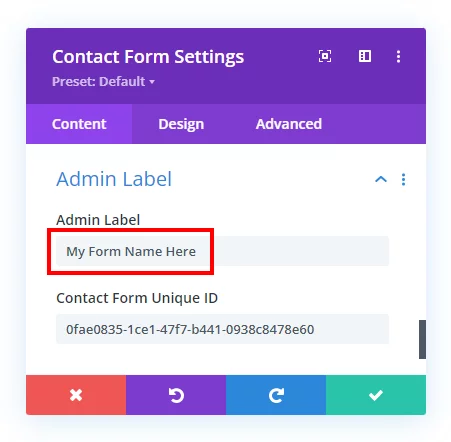
Divi has the option to add an optional Admin Label to any module inside the Admin Label toggle at the bottom of the module settings. This is for your own personal reference, and is helpful when using Wireframe mode. This field can also be used to identify the form.
The Admin Label takes the highest priority over the Title and Unique ID as the form identifier.
2. Title Field
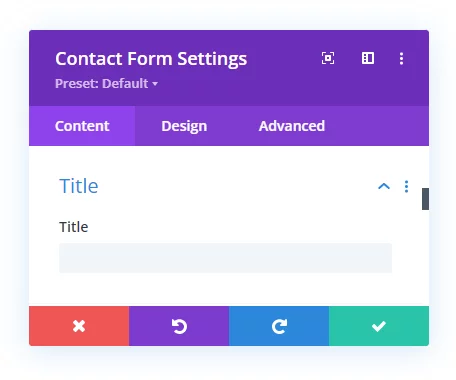
The Title field located in the Title toggle is a feature of the default contact form, which adds an option title text as a headline above the form. This field can also be used to identify the form.
The Title takes priority over the Unique ID as the form identifier.
3. Unique ID
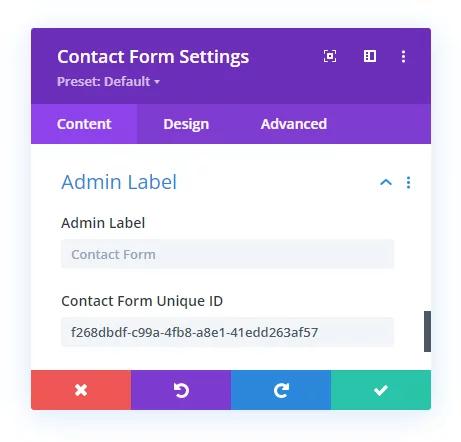
The Divi Contact Form helper plugin adds a new field inside the Admin Label toggle at the bottom of the module settings called Contact Form Unique ID. This is an automatically generated series of numbers, letters, and symbols used to identify the form if the other two methods are empty.
The Unique ID is used as the fallback form identifier if the Title and Admin Label fields are empty.
FAQs
Why Are The Entry Numbers Not Sequential?
If you notice that the entries saved to the database are not sequential, don’t worry! Nothing is wrong or missing, it is normal and just how WordPress works. You would notice the same thing if you checked your Media Library files, pages, posts, etc. It works this way because the entry number is actually just a post ID, just like other media, posts, and pages. This ID is based on rows in your website database, so it is cumulative sitewide, and this is why the numbers for one specific type of post such as entries will usually not be sequential. So for example, if you have a contact form entry #1234, but then you create a new blog post (ID #1235), then upload 3 new images (IDs #1236, #1237, #1238) then the next form entry number would be #1239.
What Table Is Used For Storing Entries To The Database?
We are using a custom post type ‘pwh_dcfh’ for the form entries. This post type is based on the WordPress post type, so the contact form submission save in wp_post with the custom post type. The raw form data is saved in post_content and processed form data is saved in post_excerpt columns of wp_post in a serialized format. We are also using some post meta for some requirements. The submissions are secure in the database. Only developers can access and read this data.