

Overview
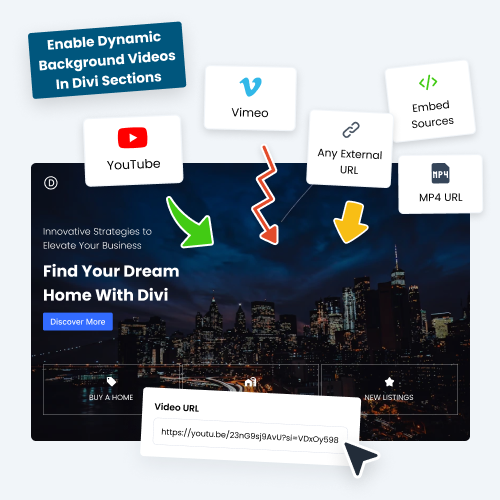
The Dynamic Background Videos feature in our Divi Dynamic Content Helper plugin allows you to use custom fields and dynamic content with Divi background videos. Instead of uploading MP4 files directly to the WordPress media library, you can use external video sources such as YouTube, Vimeo, MP4 URLs, supported oEmbed fields, and other compatible sources as section background videos. This guide explains how to enable the feature and connect a custom field to a Divi background video.
NOTE: This feature is only available in Divi 5 and is not available in Divi 4. Limitations in Divi 4 made it difficult or impossible for third-party developers to extend or customize certain functionality. We’re excited that Divi 5 provides more freedom and opportunities to build advanced features like this, and we hope you enjoy the new features we are able to create now.
How To Use
Step 1. Enable Dynamic Background Videos
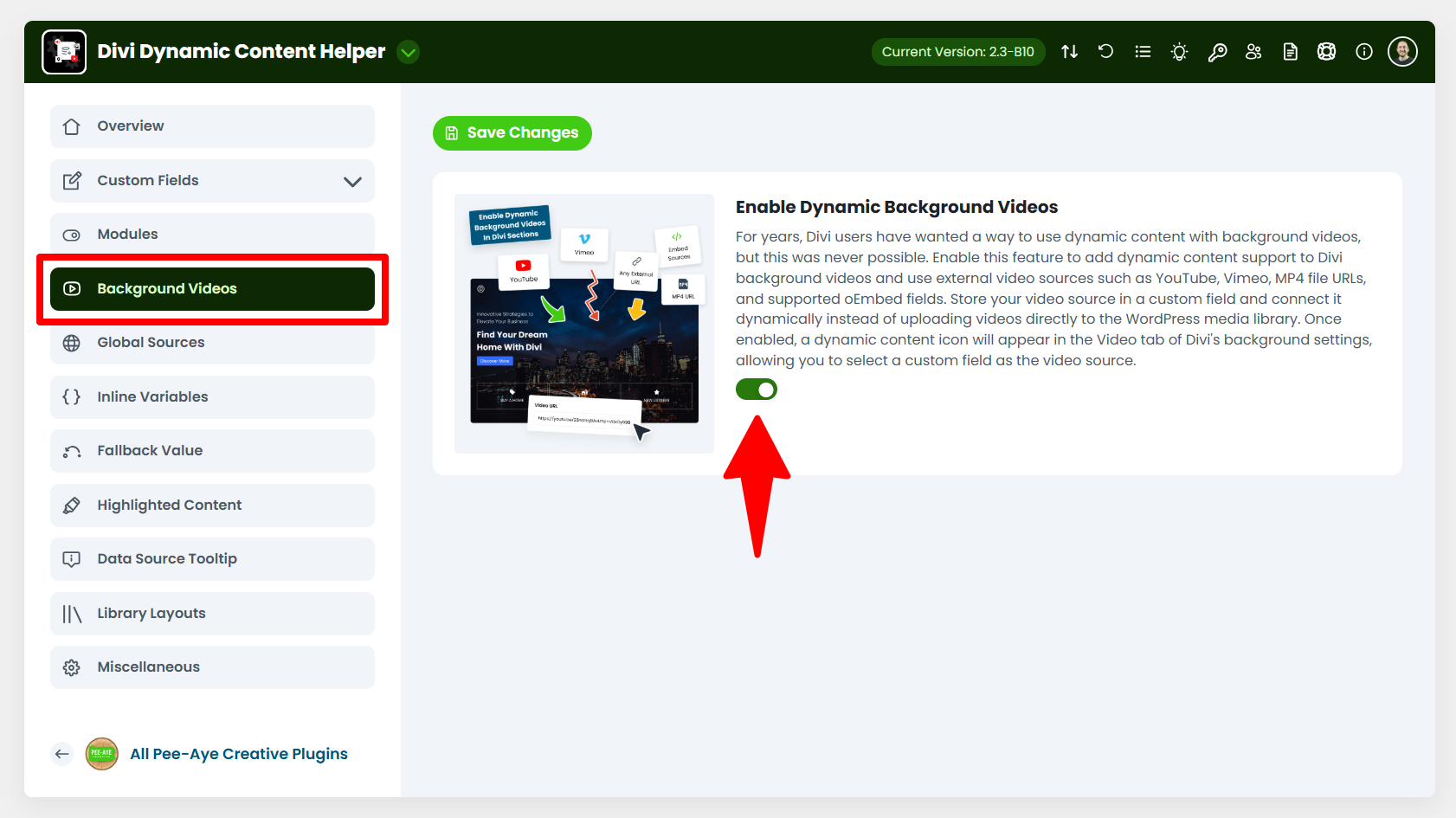
To start using the Dynamic Background Videos feature, go to the Pee-Aye Creative menu in your WordPress backend, then select Divi Dynamic Content Helper. In the plugin settings interface, open the Background Videos tab from the left sidebar.
From there, simply enable the main feature setting, and this feature will be activated in all section backgrounds in the Divi Builder.
2. Prepare Your Video Source
Before connecting a dynamic background video in Divi, you’ll first need a video source. Since video files are often much larger than images, many users prefer not to upload large MP4 files directly to WordPress. Instead, they host videos externally and reference them from their site.
Popular options include YouTube, Vimeo, CDN-hosted videos, and other platforms that provide video URLs or supported oEmbed sources. Once your video is ready, copy the video source because you’ll use it in the next step.
Step 3. Add The Video Source To A Custom Field
The next step is storing the video source in a custom field. We’ll assume you’re already familiar with creating and assigning custom fields, but you may need to create a new field specifically for background videos.
You can use native WordPress custom fields or plugins such as ACF, Pods, or ACPT. Create a field for the video source, assign it to the page, post, or custom post type where you want to use the background video, and then add your video source.
Create a field group if needed and add a field for the video source. There are several field types that work well here, like a standard URL field, a video URL field, a file picker field, or an oEmbed field. In this example, I’ll use ACF and create a simple URL field.

Be sure to assign that field group to the page, post, or content type where you want it to appear so that the field is available when you edit that page where you want to add the background video.
Once the field is added, go ahead and paste in your video URL into the custom field and save the page. Depending on your setup, this may be a YouTube URL, Vimeo URL, MP4 file URL, or another supported external video source.

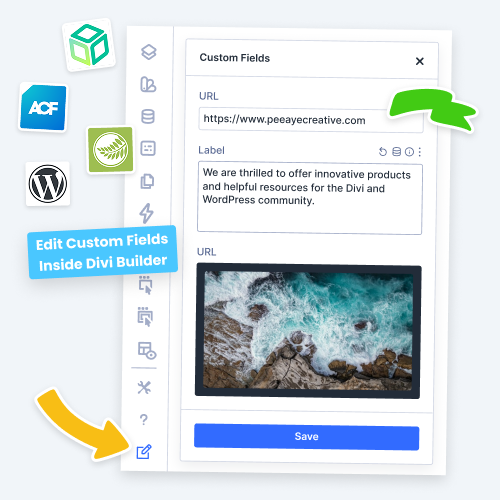
Don’t forget that you can use our other feature of this plugin to edit custom fields directly in the Divi 5 builder, an exclusive feature that’s pretty cool to use!

Exclusive Feature
View the docs to learn more about editing custom fields in the Divi Builder.
Step 4. Connect The Custom Field To The Background Video
Once your video source has been added to the custom field, open the Divi Builder and edit the section where you want to display the background video.
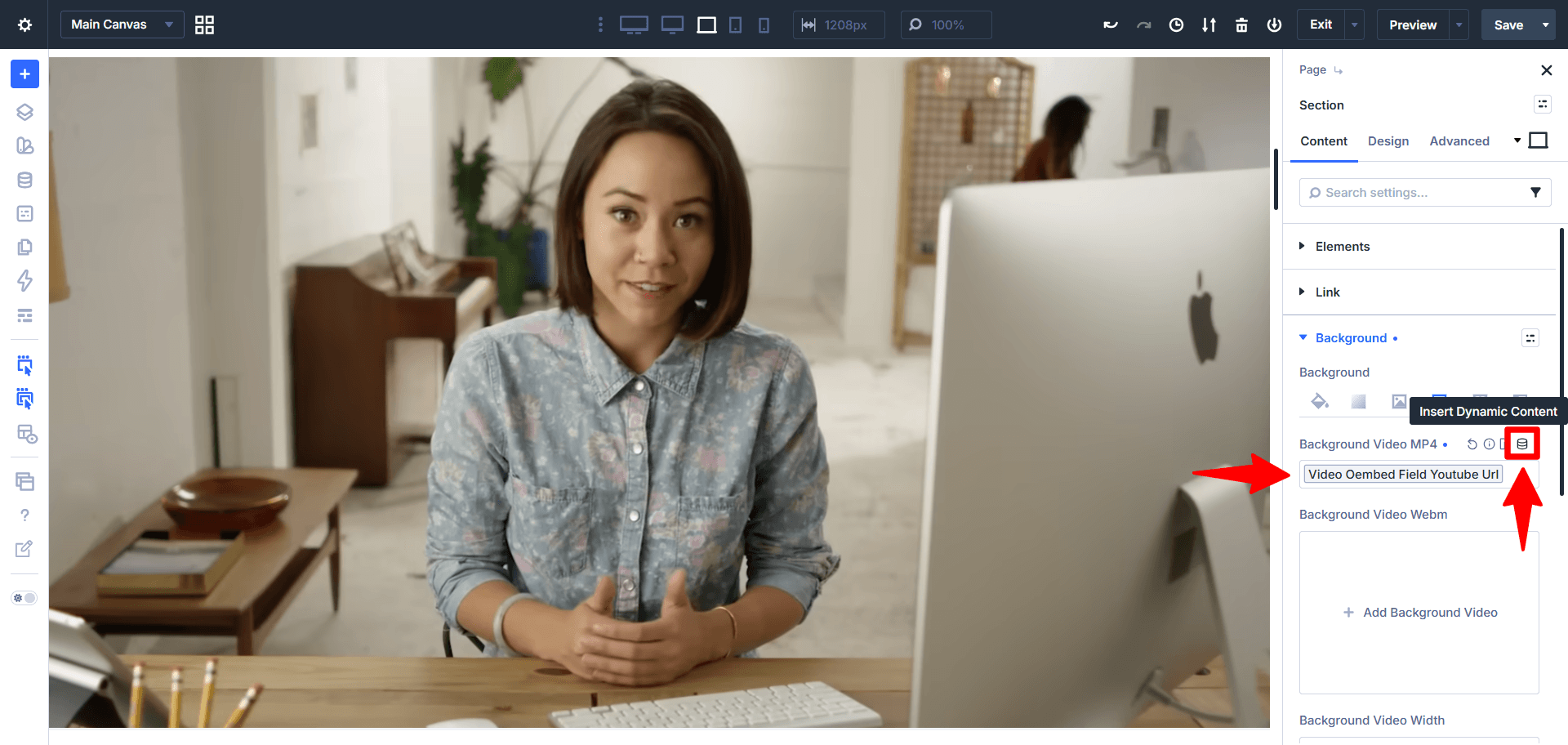
Go to Content > Background and hover over the Video tab to reveal the dynamic content icon.


Notes
YouTube Player Controls
When using YouTube videos, you may occasionally notice YouTube’s own play or pause button appearing over the video. These controls are part of YouTube’s embedded player and cannot be removed by Divi Dynamic Content Helper or any third-party plugin due to browser security restrictions. We’ve made the video itself non-interactive so it won’t react to clicks or hover, but YouTube still controls its own player interface.
Theme Builder Placeholders
When editing Theme Builder templates that are not associated with a specific page or post, Divi may display a placeholder icon instead of the actual video. This prevents broken video previews in the builder. Once the template is applied to content containing a video source, the correct background video will appear automatically.
Works With Divi Background Features
Dynamic Background Videos works seamlessly with Divi’s native background settings, so you can continue designing backgrounds the same way you always have.
Background colors, gradients, images, patterns, masks, sizing options, and the Pause While Not In View setting all continue to work normally with dynamic video sources. You can even use a background image together with the video, and Divi will treat the image as a fallback just as it does with standard background