Managing Your License
Managing your license starts with finding your license key, activating it on your website, and keeping track of the license keys associated with your Pee-Aye Creative account. The sections below walk through each part of the process, whether you’re setting up a plugin for the first time or managing licenses across multiple websites.
What Is a License Key?
A product license key is a unique series of letters and numbers associated with your Pee-Aye Creative purchase. It connects the plugin installed on your website to your Pee-Aye Creative account, allowing us to verify your purchase and provide automatic updates and product support.
Your license key does not unlock additional features in the plugin or change how the plugin functions. However, activating your license allows the plugin to communicate with our licensing system so that it can receive automatic updates. An active license also helps us verify your purchase when you need product support and maintain compliance with our policies.
All of our plugins use product license keys. Our child themes do not require license keys.
For more information about our license types, activation limits, subscription renewals, and other licensing details, see our Product License Policy guide.
Where Do I Find My License Key?
Your license key is provided when you purchase one of our plugins from our Pee-Aye Creative website. You may find your license key on the purchase confirmation page, in your order confirmation email, or in your account.
Your account is the best place to find your current license keys because it also gives you access to the tools you need to manage them. This is especially helpful if you have purchased multiple plugins or have an Unlimited license with multiple license keys, as it provides a central place to see which keys you have and where they are being used.
Find Your License Keys in Your Account
Log in to your Pee-Aye Creative Account and click the License Keys tab.
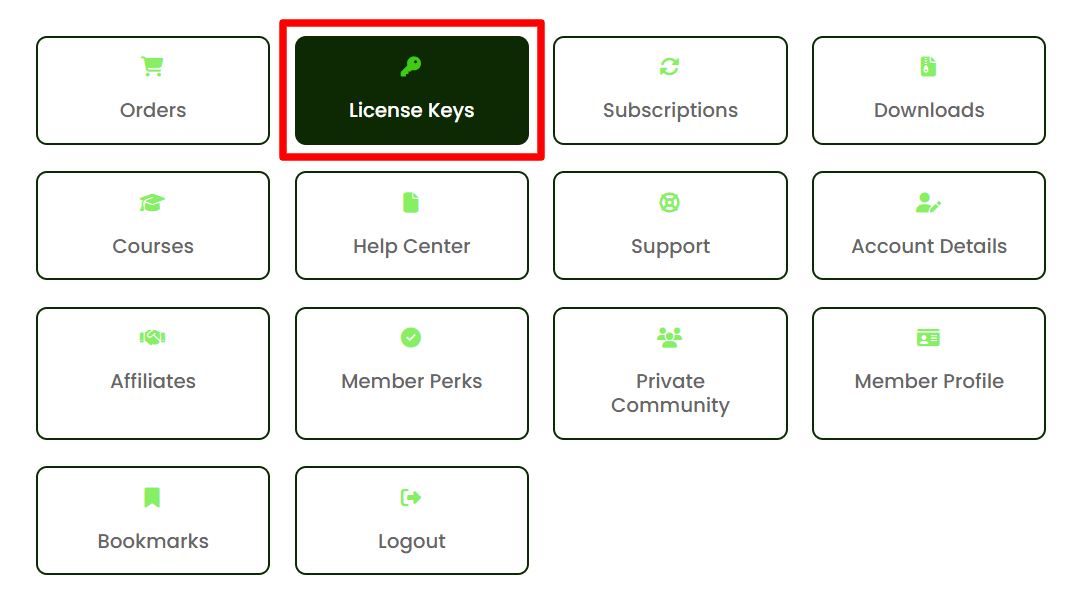
The License Keys page shows the products associated with your account and the license keys available for each product.
To view and manage individual keys, click Manage Licenses for the product you want to view.

Copy Your License Key
To copy a license key, click directly on the license key in your account or on the copy icon beside it (as shown in the screenshot below). You can then paste it into the plugin’s license settings on your WordPress website.

How Do I Activate My License?
After installing one of our plugins, you’ll need to enter your license key in the plugin’s license settings to connect the plugin to your Pee-Aye Creative account.
The location of the license settings depends on whether you’re using Divi 5 or Divi 4.
Divi 5
Our newer plugin interface is available in all our plugins installed on Divi. This universal interface is part of the improvements we’ve made to provide a more consistent experience across our plugins. This includes a dedicated license page, making it easy to find and manage your license.
After installing and activating the plugin, open the plugin’s settings area from the main Pee-Aye Creative > [Plugin Name] menu on the left, and click the “key” icon in the top header bar.
Paste your license key into the field and click Activate.

Once the license is successfully activated, the plugin will connect to our licensing system to verify the license and check for available updates.

Explore Our New Interface!
You can learn more about it in Introducing Our New Universal Plugin UI.
Check our blog post and video about our new Divi plugin settings interface!
Divi 4
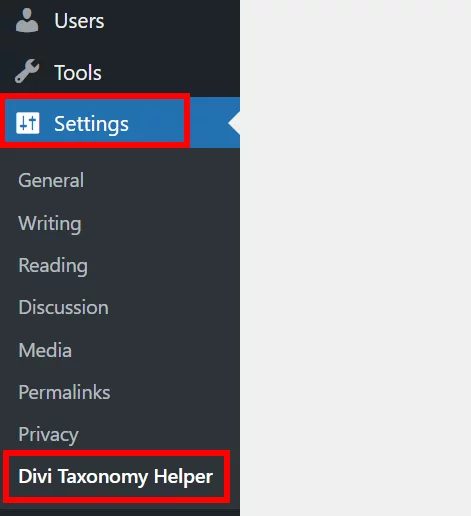
If you’re using Divi 4, the license settings are located in the WordPress Settings menu. From your WordPress dashboard, go to Settings > [Plugin Name] to open the simple page where you can enter your license key.
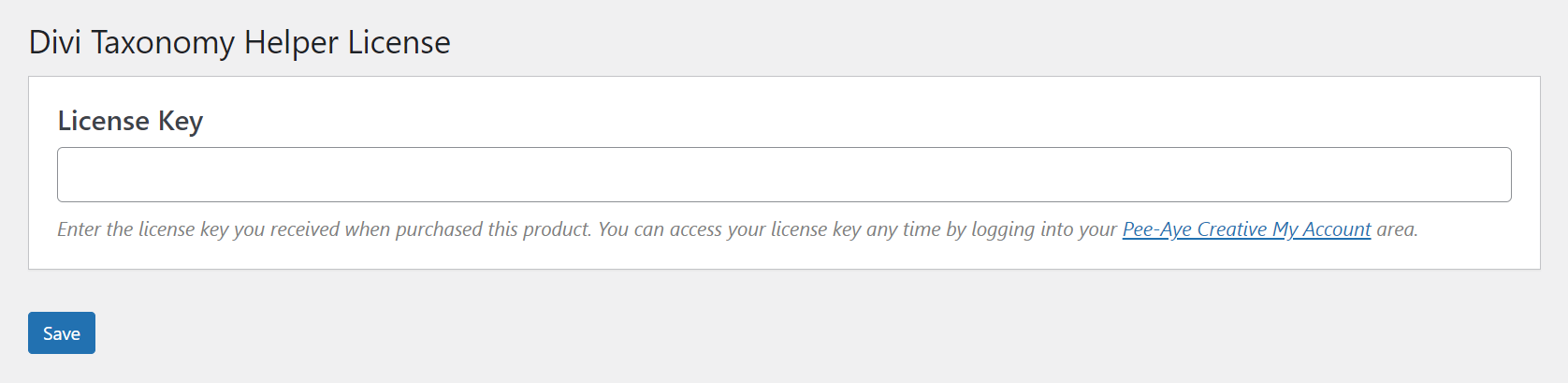
After installing and activating the plugin, you may also see a notice at the top of your WordPress Dashboard asking you to enter your license key. Clicking the enter your license key link in that notice goes directly to the license page.

The license page is very basic, with a simple input field. Paste your license key into the license key field and click Save.
Once the license is successfully activated, the plugin will connect to our licensing system to verify the license and check for available updates.
How Do I Manage My License Keys From My Account?
Your Pee-Aye Creative account isn’t just where you find your license keys. It also lets you manage the individual keys associated with your products. This is particularly useful if you have an Unlimited license and use your plugins on multiple websites.
Go to your Pee-Aye Creative Account and open the License Keys tab. Find the product you want to manage and click Manage Licenses.
Depending on your license and how many keys you have created, you may see several license keys listed for the same product. Each key can have its own status and website assignment.
Assigned and Unassigned License Keys
A license key can be either assigned or unassigned.
An assigned license key is currently being used on a website. An unassigned license key is available to use but is not currently assigned to a website.
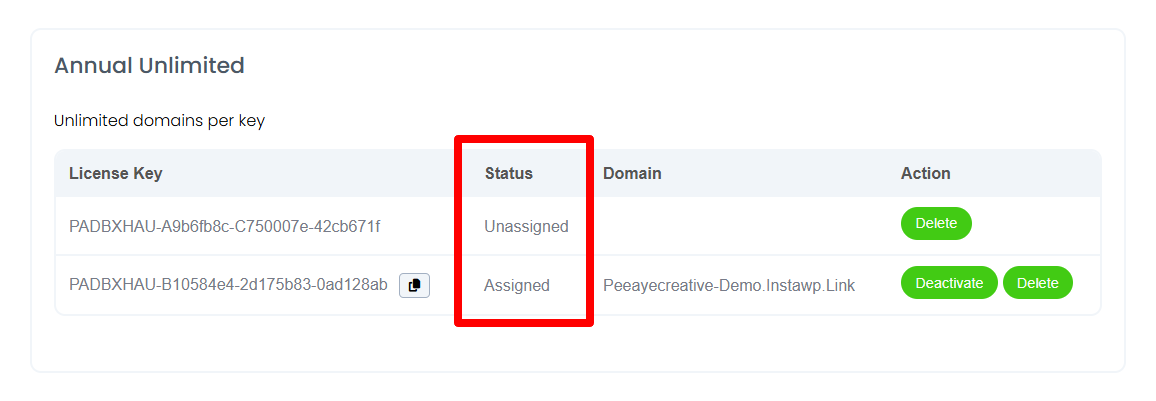
This makes it easier to keep track of your license keys, especially if you have multiple websites using the same plugin.
For example, if you have an unlimited license and have generated five license keys, you can see which of those keys are currently assigned to which websites and which ones are still available for use.
See Which Domain Is Using a License
When a license key is assigned to a website, the domain associated with that key is shown in your account. This allows you to quickly identify where a particular license key is being used.

Deactivate A License Key
If you’re no longer working with a client or no longer manage a website, you can deactivate a license key either directly from the plugin on your website or from your Pee-Aye Creative account.
When you deactivate a license, the key remains in your account but is no longer assigned to that website. You can use the key again on another website when needed.
Deactivating a license does not delete the license key. If you no longer need the key at all, you can delete it after deactivating it.
Deactivate From Your Website
If you still have access to the website, you can deactivate the license directly from the plugin’s license settings, which you can access from the same locations as described above.
In Divi 4, go to your WordPress Dashboard, then Settings > [Plugin Name], and click the Deactivate button.
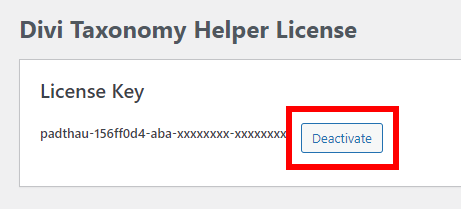
In Divi 5, go to the Pee-Aye Creative > [Plugin Name] menu to the “key” icon in the top header, and click the Deactivate button.
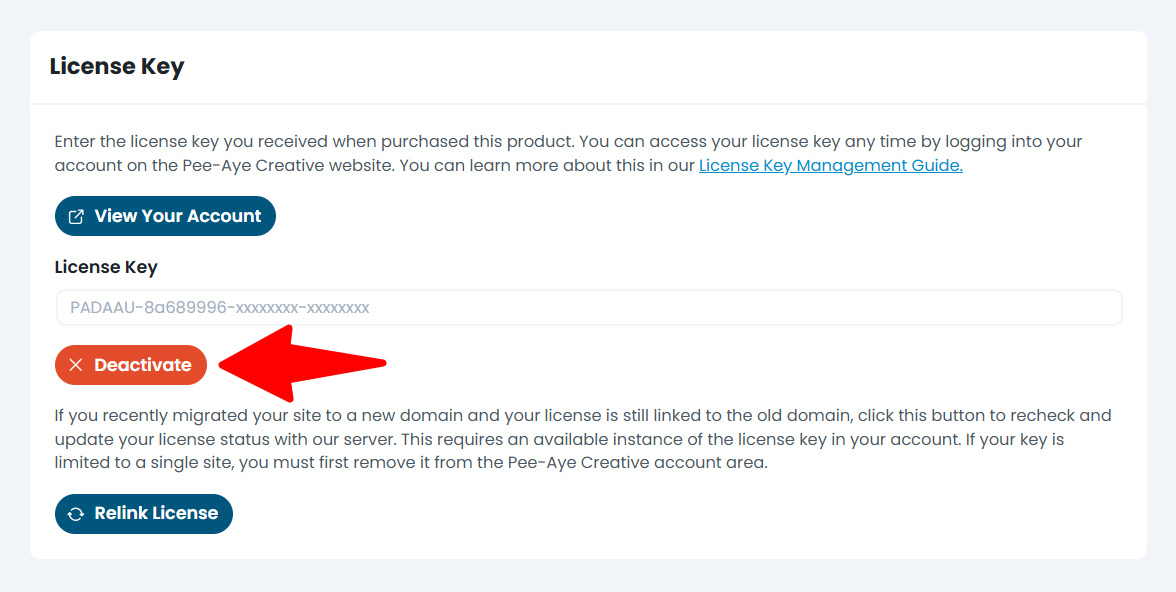
This will disconnect the license key from that website. The license key will remain in your account and can be used again on another website.
Deactivate From Your Account
You can also deactivate a license from your Pee-Aye Creative account. This is especially useful if you’re no longer working with a client or no longer have access to the website where the license key is being used.
Find the license key assigned to the website and click Deactivate. The key will remain in your account but will no longer be assigned to that website.
If you no longer need that individual license key, you can also delete it after deactivating it.

Delete a License Key
Deleting a license key is different from deactivating it.
When you deactivate a license, the key remains in your account but is no longer assigned to a website. When you delete a license key, that individual key is permanently removed from your account. Any website previously connected to a deleted key will no longer receive updates, and a new key will need to be added.
If you simply need to free up a license key for another website, deactivate it rather than deleting it.
Locate the license key you want to delete, then click the green “Delete” button.

Generate Additional License Keys
Depending on your license/subscription type, you may be able to generate additional license keys for a product. Annual Unlimited and Lifetime Unlimited licenses allow you to generate additional keys, while Lifetime Single licenses do not.
Additional keys can be useful if you want to use separate license keys for different websites or client projects.
To generate a new key, locate the License Key Generator section below the license keys and click Generate License Key. The new key will then appear in your list of available license keys.

License & Update Troubleshooting
Most license problems are caused by one of a few things: the license key itself, a website security or caching issue, a WordPress authentication problem, or the license information being temporarily out of sync after a website change. The steps below cover the most common situations and what you can do before contacting support.
What Happens When I Move My Website?
When you move your website to a new domain, staging site, or hosting environment, your license information can sometimes become temporarily out of sync with our license server. This does not necessarily mean there is anything wrong with your license key.
Our license system checks the status of your license periodically, so it can take some time for a website migration or other changes to be reflected. If you recently moved your website and the plugin is showing a license-related message, give the system some time to update before assuming that the license is no longer valid.
If you’re using Divi 5, you can use the Relink License option in the plugin’s license settings to force the plugin to check your license again.
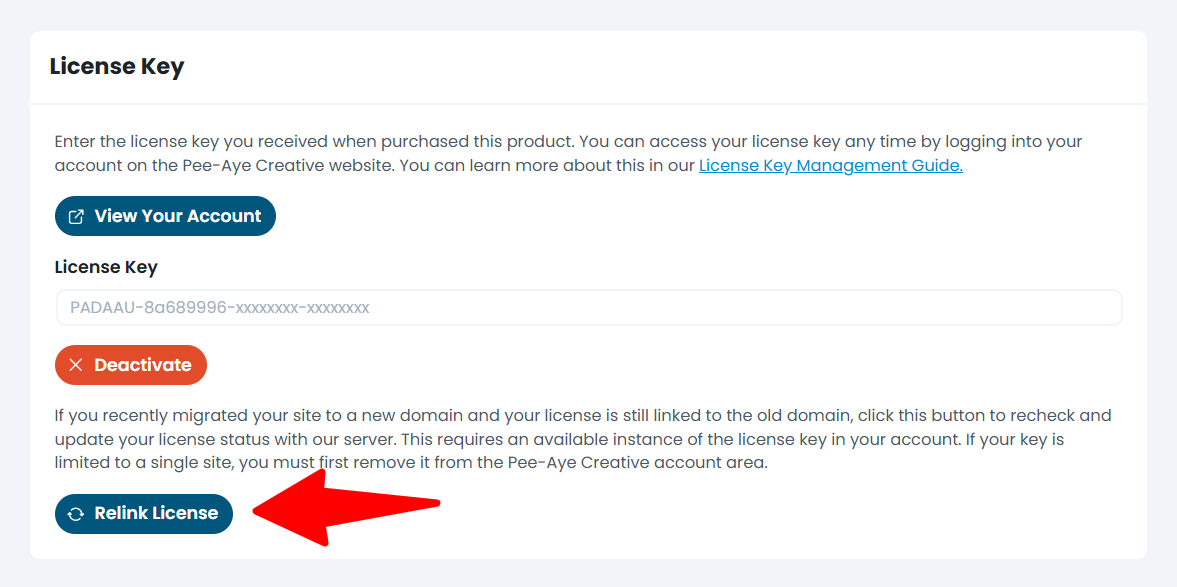
If you no longer have access to the old website, you can also deactivate the license assignment from your Pee-Aye Creative account and then use the license on your new website.
If the license still isn’t working after the migration, continue with the troubleshooting steps below. In particular, see What If My License Seems Stuck or Out of Sync?
What If My License Won’t Activate or Connect?
If your license won’t activate or the plugin cannot connect to our license server, there are several things worth checking. The specific error message can also provide useful information about where the problem occurs.
Check Your License Key
First, make sure you’re using the correct license key for the product you’re trying to activate. You can find your license keys in your Pee-Aye Creative account.
Copy the license key directly from your account and paste it into the plugin rather than typing it manually. Make sure there are no extra spaces before or after the key.
If you’re sure the license key is correct and activation still fails, continue with the steps below.
Security, Caching, Firewall, Cloudflare, etc.
Your website needs to be able to communicate with the Pee-Aye Creative license server. Security software or server settings can sometimes interfere with that connection.
If you’re seeing a message about a problem connecting to the license server, check whether your website has any of the following:
- A security plugin or firewall that could be blocking outgoing requests
- Caching that could be interfering with the license request
- A hosting security setting that restricts connections to external services
- Cloudflare or another proxy or security service
- Other server-level security or firewall rules
Temporarily disabling a security or caching service can help determine whether it is causing the problem. If you aren’t sure which setting could be responsible, your hosting provider may be able to check whether connections from your website to our license server are being blocked.
WordPress Authentication and Session Errors
Some license requests are processed through WordPress’s authentication and security system. If WordPress cannot verify the request, you may see an error such as “Sorry, you are not allowed to do that,” “Invalid nonce,” or “Cookie check failed.”
These errors can sometimes be caused by an expired WordPress login session, a security plugin, caching, or another security setting interfering with the request.
First, try refreshing the page and making sure you are still logged in to WordPress. If the problem continues, temporarily check your security and caching settings to see if they are interfering with the request.
If you’re still unable to activate or deactivate the license, please contact us so we can help determine what is preventing the request from being completed.
What If My License Seems Stuck or Out of Sync?
Sometimes a license can appear to be stuck in an old state. For example, your account may show that the license is active, but the plugin may not recognize it correctly after a website migration or other change.
Our license system checks your license periodically, so a recent change may not be reflected immediately. If you’ve recently moved the website, changed domains, or made another significant change, allow some time for the license information to update.
If you’re using Divi 5, the Relink License option can force the plugin to check the license again instead of waiting for the next scheduled check.
If the license still appears to be out of sync after trying this, contact us. We can check the license status on our end and help determine what needs to be corrected.
Why Are Automatic Updates Unavailable?
Pee-Aye Creative plugin updates are delivered through the normal WordPress update system when an update is available for your license. In one sense, they are “automatic” in the fact that when a new version is available, you will automatically see an “update” button appear in the plugin list and updates page in WordPress.
But it’s important to understand that the concept of automatic updates is not the same as whether an update is available. You may sometimes see “Automatic updates are unavailable for this plugin.” This message can be confusing. WordPress has its own Enable auto-updates setting for plugins. This setting determines whether WordPress should automatically install an available update without you manually clicking the update button.
Again, it’s important to understand this is unrelated and does not control whether Pee-Aye Creative updates are available to your website, and this option is not causing or preventing your site from receiving updates. If an update is available for your plugin, WordPress will show it through the normal plugin update system.
We recommend leaving WordPress’s automatic plugin installation disabled so you can review and install updates yourself. Check out our guide How To Disable Divi Auto-Updates to learn more about why we recommend this.
Why Isn’t a New Plugin Update Showing Yet?
When we release a new plugin update, it may not appear on your website immediately. Our system checks for available updates periodically, approximately every 72 hours.
Because of this, it is normal for there to be a delay between when we release an update and when WordPress detects it on your website.
If we released an update today and you don’t see it yet, you generally do not need to do anything. Give the update system some time to check again.
If it has been more than 72 hours since the update was released and your website still isn’t detecting it, there may be another issue preventing the update information from reaching your site. Continue with the next section or contact us for help.
What Should I Do If I Can’t Update My Plugin?
If a plugin update is available but you cannot install it, first make sure your license is active and that WordPress can connect to our update server.
If you recently moved the website, changed hosting, or changed security or caching settings, review the troubleshooting steps above. Security plugins, firewalls, Cloudflare, caching systems, and hosting security settings can sometimes interfere with the requests needed for license and update information.
Also make sure you are logged into WordPress with an account that has permission to update plugins.
If WordPress is showing a specific error message, please take note of the exact message. This can be very helpful when troubleshooting the problem.
If you’ve waited for the normal update-check period, your license is active, and you’ve confirmed that your website isn’t blocking the connection, but the update still isn’t available or won’t install, please contact us. We can check the license and update information on our end and help determine what is preventing the update.
License Key Troubleshooting & FAQs
Can I Use My License on Another Website?
Yes, as long as your license type allows it.
If a license key is currently assigned to another website, you can deactivate that license assignment and then use the key on another website.
Annual Unlimited and Lifetime Unlimited licenses can be used on an unlimited number of websites, subject to the conditions of your license. Lifetime Single licenses are limited to one website, although they can be moved from one website to another by deactivating the existing license assignment first.
If you’re using a license on a client website, remember that you must continue to actively maintain that website for the client for your license to cover it. If you stop maintaining the website, the client will need their own license.
What Happens When My License Expires?
This depends on the type of license you have.
For an Annual Unlimited license, if the subscription expires or is canceled, you will lose access to updates, support, and downloads for sites using that license. The plugin itself does not suddenly stop working simply because the subscription has ended, but you will no longer receive new updates or product support through that license.
Lifetime Single and Lifetime Unlimited licenses do not expire, so they continue to receive updates and support for the lifetime of the product.
You can review your license and subscription information in your Pee-Aye Creative account.
How Do License Keys Work With Multisite?
Annual Unlimited and Lifetime Unlimited licenses support WordPress Multisite. Lifetime Single licenses do not support Multisite.
For a Multisite network, the way you activate the plugin depends on how the plugin is being used.
If the plugin is network activated, you can enter the license key from the plugin’s settings within the network.
If the plugin is activated only on specific subsites, you will need to enter the license key on each individual subsite where the plugin is active.
If you’re unsure how your particular Multisite setup should be configured, contact us and we’ll be happy to help.
Can I Use My License on a Staging or Development Website?
Yes. You can use your license key on a staging or development website. All of our license types allow staging sites.
Keep in mind that a staging site is still a separate website environment, so you may see it listed as an assigned domain in your license information.
Can I Use My License on a Client's Website?
Yes. You can use our products on websites that you develop and actively maintain for clients, as long as your license permits it and you maintain an active subscription where required.
If you stop maintaining a client’s website, the client will need to purchase their own license to continue receiving updates and support.
If you are no longer working with a client, deactivate the license assigned to their website so you can use that license key elsewhere.
Can I Have More Than One License Key for the Same Product?
Yes, depending on your license type.
Annual Unlimited and Lifetime Unlimited licenses allow you to generate additional license keys. This can be useful when you manage multiple websites or want to keep separate keys for different client projects.
Lifetime Single licenses do not allow you to generate additional license keys. We technically allow two: one for a live site and one for a staging/development site.
Each key can be assigned to a different website, and your account lets you see which keys are assigned and which are available.
What's the Difference Between an Assigned and Unassigned License Key?
An assigned license key is currently connected to a website.
An unassigned license key is available to use but is not currently connected to a website.
If you manage multiple websites, this makes it easier to see which license keys are currently being used and which ones are available.
What's the Difference Between Deactivating and Deleting a License Key?
When you deactivate a license, the license key remains in your account but is no longer assigned to that website. You can use the key again later.
When you delete a license key, that individual key is removed from your account.
If you simply want to stop using a key on one website and make it available again, deactivate it rather than deleting it.
Can I Deactivate a License If I No Longer Have Access to the Website?
Yes. You can deactivate a license from your Pee-Aye Creative account even if you no longer have access to the WordPress website.
This is particularly useful if you’ve finished working with a client, the website has been replaced, or you otherwise no longer manage the site.
Once the license is deactivated, the key remains in your account and can be used again.
I Can't Find a License Key From an Older Purchase. What Should I Do?
First, make sure you’re logged into the Pee-Aye Creative account associated with the purchase. Your current license keys are available from the License Keys tab in your account.
If you still can’t find a license key from an older purchase, contact us with the email address you used for the purchase and, if possible, the product name and approximate purchase date. We can help locate the purchase and determine what license information is available.
I Purchased a Plugin From the Divi Marketplace. Do I Need a Pee-Aye Creative License Key?
No. Plugins purchased through the Divi Marketplace do not use our license-key system.
Updates and support for those purchases are validated through your Elegant Themes account instead. You should make sure your Divi Username and API Key are entered under Divi > Theme Options > Updates on your website.
If you purchased the plugin directly from Pee-Aye Creative, you will use a Pee-Aye Creative license key as described throughout this guide.
Why Don't I See a License Key for My Child Theme?
Our child themes do not require a Pee-Aye Creative license key. License keys are used with our plugins to connect them to your Pee-Aye Creative account and provide updates and support.
When Should I Contact Support?
We’ve tried to cover the most common license and update problems in this guide, but sometimes a problem requires us to look at your specific license or website.
Please contact us if:
- Your license key is correct but you still cannot activate it after following the troubleshooting steps.
- Your license appears active in your account but the plugin cannot verify it.
- Your license remains stuck or out of sync after moving your website.
- An update still isn’t appearing after the normal update-check period.
- WordPress is showing an error that you cannot resolve.
- You have followed the relevant troubleshooting steps and the problem continues.
- You’re not sure which license key or license type you should be using.
When contacting support, please include the product name, website URL, exact error message, and a description of what you were trying to do. A screenshot of the error can also be very helpful.
You don’t need to figure out every licensing problem on your own. If you’ve worked through the relevant steps in this guide and something still isn’t working, contact us and we’ll be happy to help.